Apple Watch
The watch face complication
The complication puts Little Bean on your watch face: no app to open, just a glance. During a night feed that is the difference between checking and waking up fully.
Add it to your watch face
- On the watch, press and hold the watch face, then tap Edit.
- Swipe to the complications screen and tap a slot.
- Choose Little Bean from the list.
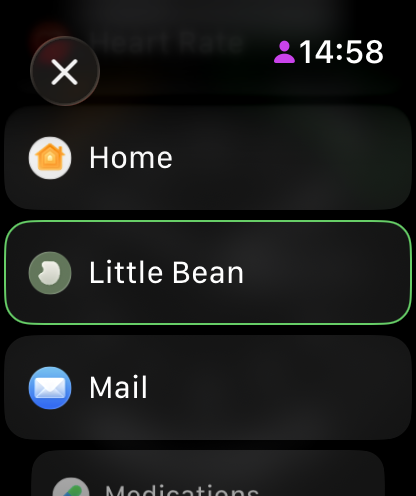
What it shows
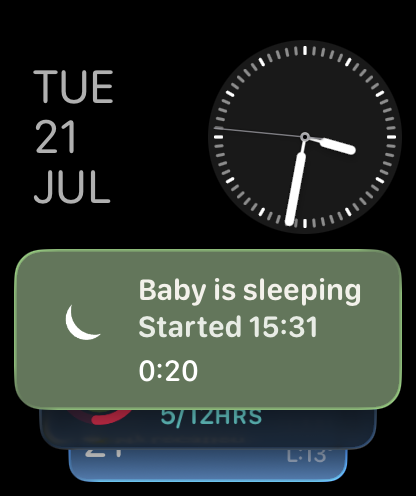
Whatever matters most right now. While a timer runs, the complication shows it live, with the start time and the running count:
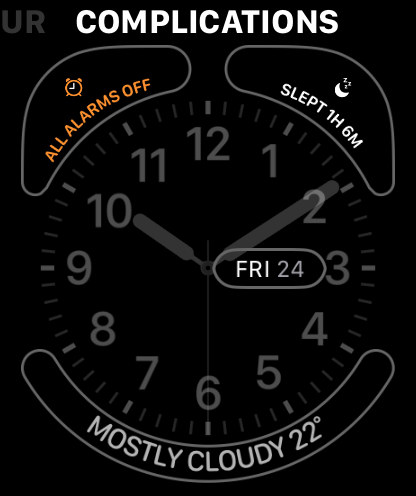
With no timer running it shows the most recent entry, like last night's total sleep:
Tapping the complication opens the watch app, ready to log.
How fresh is it?
The complication updates on its own, without you opening anything. When your partner logs a feed or starts a sleep, it usually shows up within a few minutes.
Usually, not always. Apple limits how often an app may wake a watch in the background, and that limit tightens when the battery is low or the watch has been off your wrist. So the complication can sit a few minutes behind, and occasionally longer. Opening the watch app makes it catch up straight away.
Not seeing Little Bean in the complication picker at all? Install the watch app first.
Just installed or updated Little Bean? Restart your Apple Watch. After an install or an update, watchOS sometimes needs a restart before the complication turns up in the picker or starts filling in.
Still have a question?
We're a small team and we read everything. Email us and we'll get back to you.